Integration of APEX, ORDS, Tomcat, and Apache HTTP Server (APEXOTA)
Part 3 - Configurations
Configure Tomcat 9
Create new Tomcat service
xxxxxxxxxxcd C:\APEXOTA\tomcat9\binC:\APEXOTA\tomcat9\bin>service.bat install tomcat9Installing the service 'tomcat9' ...Using CATALINA_HOME: "C:\APEXOTA\tomcat9"Using CATALINA_BASE: "C:\APEXOTA\tomcat9"Using JAVA_HOME: "C:\APEXOTA\jre21"Using JRE_HOME: "C:\APEXOTA\jre21"Using JVM: "C:\APEXOTA\jre21\bin\server\jvm.dll"The service 'tomcat9' has been installed.Modify the
Connectorblock in TomcatC:\APEXOTA\tomcat9\conf\server.xml:xxxxxxxxxx<Connector port="8080" protocol="HTTP/1.1"connectionTimeout="20000"address="127.0.0.1"maxParameterCount="1000"/>This change allows that only localhost (127.0.0.1) can access the service through port 8080. In the next section we'll make the configuration of redirecting all tomcat traffic to Apache Server through proxy.
Add
ContextdocBaseunderHostnode for the APEX static file url/i/alias:
xxxxxxxxxx<Host name="localhost" appBase="webapps" unpackWARs="true" autoDeploy="true">...<Context docBase="C:/APEXOTA/apex/images/" path="/i/" /></Host>Start tomcat9 services
xxxxxxxxxxC:\APEXOTA\tomcat9\bin>net start tomcat9The Apache Tomcat 9.0 tomcat9 service is starting.The Apache Tomcat 9.0 tomcat9 service was started successfully.Open any browser to
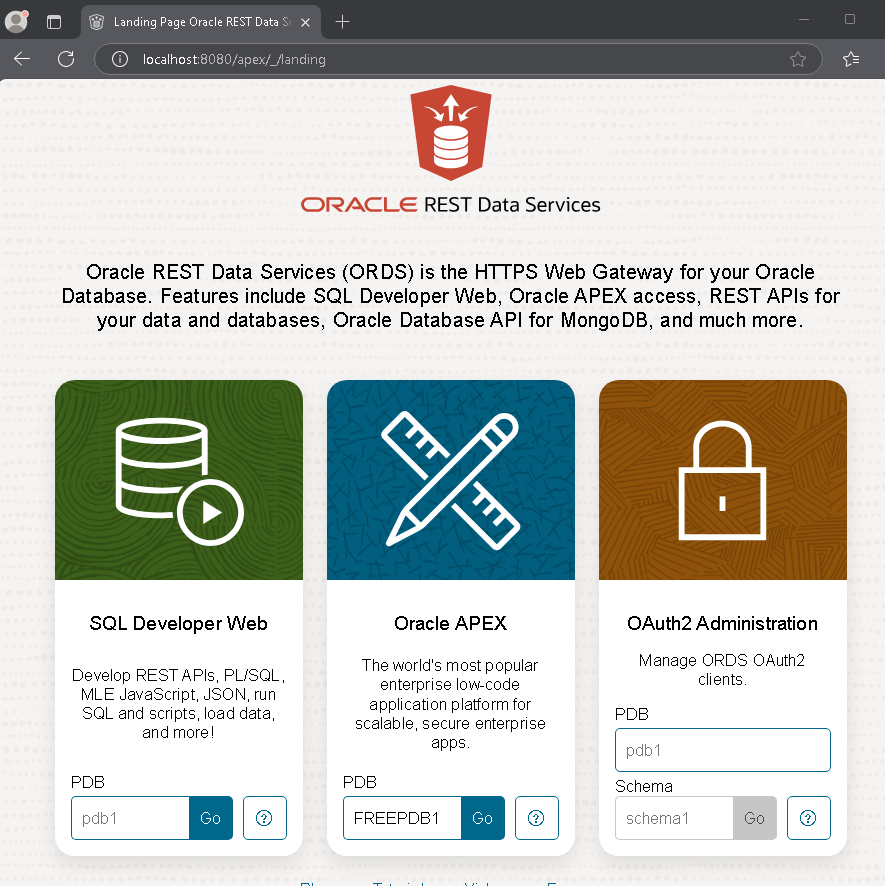
http://localhost:8080/apexIt will go to the landing page for using the first time. Enter
FREEPDB1in Oracle APEX box and click Go
In the login page, use this info to sign in
xxxxxxxxxxWORKSPACE = INTERNALUSERNAME = adminPASSWORD = Welcome!23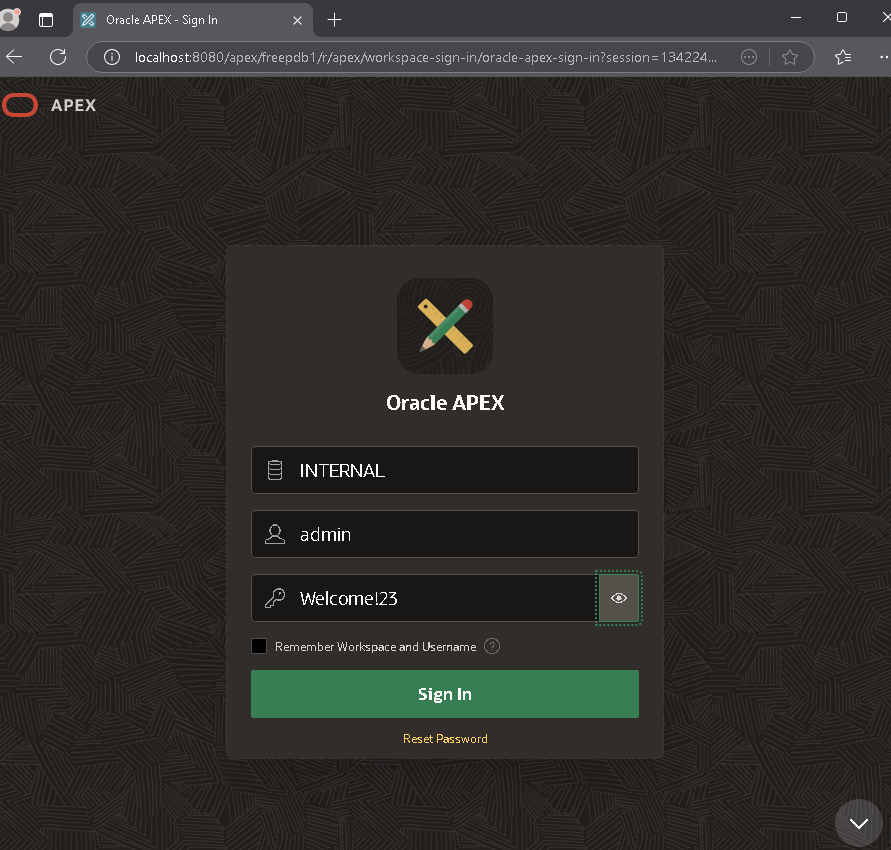
Make sure everything looks fine. Then stop the Tomcat 9 service.
xxxxxxxxxxC:\APEXOTA\tomcat9\bin>net stop tomcat9The Apache Tomcat 9.0 tomcat9 service is stopping.The Apache Tomcat 9.0 tomcat9 service was stopped successfully.
Remove or comment out the Context docBase. The static file serving will be handled by Apache in the next part.
xxxxxxxxxx<Host name="localhost" appBase="webapps" unpackWARs="true" autoDeploy="true">...<!-- <Context docBase="C:/APEXOTA/apex/images/" path="/i/" /> --></Host>
Configure Apache 2.4
Change the config file
C:\APEXOTA\Apache24\conf\httpd.confxxxxxxxxxxServerName xxx.yyy.zzz:80 (your server nmame)ServerRoot "C:/APEXOTA/Apache24" (Change to correct path)DocumentRoot "C:/APEXOTA/Apache24/htdocs" (Change to correct path)<Directory "C:/APEXOTA/Apache24/htdocs"> (Change to correct path)LoadModule proxy_module modules/mod_proxy.so (uncomment it)LoadModule proxy_http_module modules/mod_proxy_http.so (uncomment it)Add proxy settings that the web traffic from URL Path
apexis redirected to Tomcatxxxxxxxxxx<Location "/apex/">ProxyPreserveHost OnProxyPass "http://127.0.0.1:8080/apex/"ProxyPassReverse "http://127.0.0.1:8080/apex/"</Location>Create Apache HTTP Windows Service. Start Tomcat9 again and then Apache Server service
xxxxxxxxxxC:\APEXOTA\apache24\bin>httpd.exe -k installInstalling the 'Apache2.4' serviceThe 'Apache2.4' service is successfully installed.Testing httpd.conf....Errors reported here must be corrected before the service can be started.C:\APEXOTA\apache24\bin>net start Tomcat9The Apache Tomcat 9.0 tomcat9 service is starting.The Apache Tomcat 9.0 tomcat9 service was started successfully.C:\APEXOTA\apache24\bin>net start Apache2.4The Apache2.4 service is starting.The Apache2.4 service was started successfully.open URL
http://localhost/apex/. You should able to log on the APEX internal workspace again.
Configure Apache 2.4 to use SSL
For this server, create a private key file (
server.pem) and generate a certificate singing request for this server. Get this request signed by a trusted certificate authority and save this certificate asserver.crt.Create folder
sslunderC:\APEXOTA\apache24\conf. Put these 2 files to this folder.Change
httpd.conffor SSL configuration:xxxxxxxxxx#Listen 80 <-- comment outListen 443LoadModule ssl_module modules/mod_ssl.so (uncomment it)<VirtualHost [outgoing ip address]:443>ServerName [your server name]SSLEngine onSSLCertificateFile C:/APEXOTA/apache24/conf/ssl/server.crtSSLCertificateKeyFile C:/APEXOTA/apache24/conf/ssl/server.pem</VirtualHost>The Apache is
https, but the proxy to Tomcat ishttp. So we need to add an option inC:\APEXOTA\ords\bin\global\settings.xml:xxxxxxxxxx<entry key="security.externalSessionTrustedOrigins">http://[server name],https://[server name]</entry>Without this directive you will get
The request cannot be processed because this resource does not support Cross Origin Sharing requestserror.
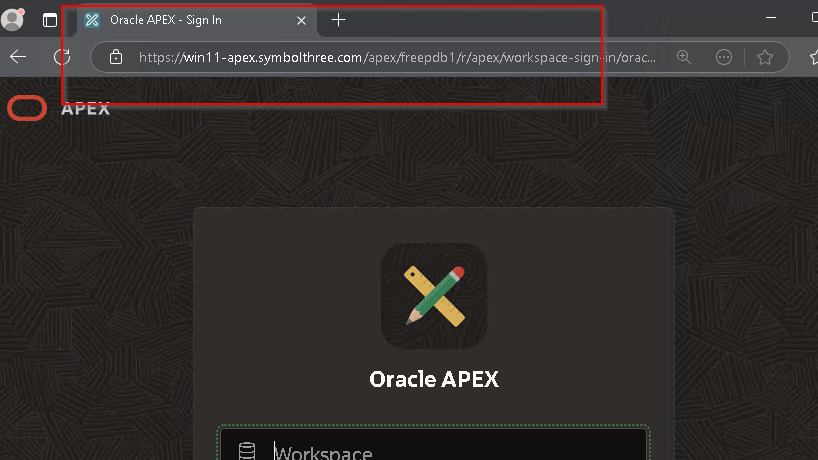
Restart Apache Server. Change the URL to
https://[servername]/apex/.
In this FREE technology stack, you can integrate these applications through different services:
APEX application backed by Oracle database
Servlet webapp (e.g. Springboot) hosted in Tomcat
Angular frontend served by Apache http server.
Add a PHP CMS site (e.g. Wordpress, Joomla) under Apache http server using the mod_php module
ORDS provides REST API to give or receive JSON data to different components
| Back |
| Home | Repositories | Blog |
© 2026 by Christopher Ho. All Rights Reserved