Oracle E-Business Suite 12.2.15 Installation on Windows
PART 9 - ENABLING SSL/TLS
About
Oracle 12.2.0 was released in 2015. Now is 2026 and the EBS version is upgraded to 12.2.15. During this decade, the security standard is enhanced that the old unsecure encryption algorithms are not allowed to be used anymore. Major modern browsers are not working with old standards; Java runtime library stop supporting these weak encryption algorithms.
So, if you want to enable EBS to use https protocol (inbound and outbound), you must upgrade everything to be compatible with TLSv1.2 or higher standard. Certificates must be at least SHA256 (SHA-2). All lower encryption levels are obsoleted now.
In our previous series of walkthrough, we'd already upgraded the EBS system to 12.2.15 under Windows 2019 with Oracle 19c database. However, you probably find out that none of the SSL/TLS related patches are mentioned. It is because this group of patches has to be all applied at the same time, setting up new wallet files in different locations, and changing settings in various places. Missing a change or a misconfiguration of the wallet file could make the system not able to start up properly.
Patching
After running the ETCC on the app server side, it will show a list of missing patch. For the list of Oracle home
FMW - webtier 11.1.1.9.0, apply ALL these recommended patches (especially those patches for SSL/encryption), but DON'T apply these two:32287205(OSS BUNDLE PATCH 11.1.1.9.210420)34067016(POST MES4.5 UPG NZOS_HANDSHAKE DOES NOT SEND CERTIFICATE CA NAMES WHEN REQUESTING MUTUAL_AUTH)
You can get these 2 patches (as well as other recommended patches) from patch
33845432(ETCC: REHOST 33800106 BSU.SH EHANCEMENT V.5)You MUST make all the following changes first, and then you can finally apply these 2 particular patches. Failure to do so will make the web tier processes not able to start up!
Upgrade JDK
You must update these two JRE 7 to the latest version (current version is build 1.7.0_351-b07).
AF_JRE_TOP
C:\oracle\[SID]\fs1\EBSapps\comn\util\jdk64\jreOA_JRE_TOP
C:\oracle\[SID]\fs1\EBSapps\comn\util\jdk32\jreYou can get this JRE from patch
34170415(Oracle SERVER JRE 7 Update 351)
Create new wallet file
Warning
Do not use the Wallet Manager (the GUI application) to create wallet file. Wallet must be created and modified by command orapki.
Create a temp folder e.g.
C:\oracle[SID]\cert. You will create the wallet in this folder, then copy the wallet to different locations.Start the app profile, and change to this folder, then set the
orapkicommand located in%FMW_HOME%\oracle_common\binin system path:xxxxxxxxxxcd C:\oracle\[SID]\certSET PATH=%FMW_HOME%\oracle_common\bin;%PATH%Create a new empty wallet file
cwallet.sso. Make this wallet be auto-login (no passphrase needed).xxxxxxxxxxorapki wallet create ^-nologo ^-wallet . ^-auto_login_onlyDecide the Distinguish Name
DNof the new certificate first; use the FQDN as theCNvalue. Then add a new sha256 certificate, and self-signed this certificate; all are stored in this wallet file.xxxxxxxxxxSET DN="C=CA,ST=Ontario,L=Toronto,O=symbolthree.com,OU=Finance,CN=demo.symbolthree.com"orapki wallet add ^-wallet . ^-dn %DN% ^-asym_alg RSA ^-keysize 2048 ^-sign_alg sha256 ^-self_signed ^-validity 3652 ^-auto_login_onlyShow the content of the wallet file. The new certificate is served as both Certificate Authority (CA) and user certificate.
xxxxxxxxxxorapki wallet display -wallet .Oracle PKI Tool : Version 11.1.1.9.0Copyright (c) 2004, 2015, Oracle and/or its affiliates. All rights reserved.Requested Certificates:User Certificates:Subject: C=CA,ST=Ontario,L=Toronto,O=symbolthree.com,OU=Finance,CN=demo.symbolthree.comTrusted Certificates:Subject: C=CA,ST=Ontario,L=Toronto,O=symbolthree.com,OU=Finance,CN=demo.symbolthree.comReplace the
cwallet.ssofile in these folders:%FMW_HOME%\webtier\instances\EBS_web_[SID]_OHS1\config\OPMN\opmn\wallet%FMW_HOME%\webtier\instances\EBS_web_[SID]_OHS1\config\OHS\EBS_web_[SID]\proxy-wallet%FMW_HOME%\webtier\instances\EBS_web_[SID]_OHS1\config\OHS\EBS_web_[SID]\keystores\default%FMW_HOME%\user_projects\domains\EBS_domain_[SID]\opmn\EBS_web_[SID]_OHS1\wallet%FMW_HOME%\user_projects\domains\EBS_domain_[SID]\opmn\EBS_web_[SID]_OHS1\EBS_web_[SID]\wallet
Add Java Parameter
Need to add Java parameter
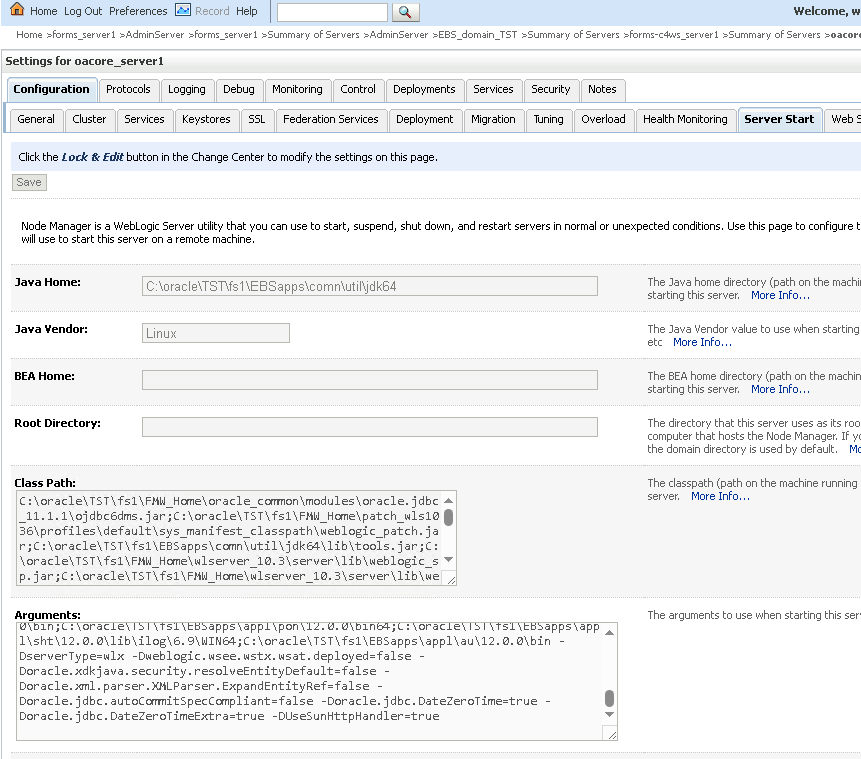
-DUseSunHttpHandler=true -Dhttps.protocols=TLSv1.2to different places so that TLS1.2 is used for https connection.Open
%CONTEXT_FILE%, append this Java parameter at the end for context variables_nm_jvm_startup_properties. Then run%ADMIN_SCRIPTS_HOME%\adautocfg.cmdto populate this parameter in different script files.Log on to the Weblogic Admin Console, click
Lock and Edit. For the following servers, selectConfiguration->Server Start. InArgumentsvalue, append this Java parameter at the end.forms-c4ws_server1
forms_server1
oacore_server1
oafm_server1
Click
Activate Changeto save the changes.
Change OHS SSL Settings
Need to force to use TLS1.2 and SHA2 in these Oracle HTTP server config files:
%FMW_HOME%\webtier\instances\EBS_web_[SID]_OHS1\config\OHS\EBS_web_[SID]\ssl.conf%FMW_HOME%\webtier\instances\EBS_web_[SID]_OHS1\config\OHS\EBS_web_[SID]\admin.conf
Search for
SSLCipherSuiteandSSLProtocol. Replace the parameter values as follows:xxxxxxxxxxSSLCipherSuite HIGH:MEDIUMSSLProtocol TLSv1.2
Change OPMN SSL Settings
Open file
%FMW_HOME%\webtier\instances\EBS_web_[SID]_OHS1\config\OPMN\opmn\opmn.xml. Search for thesslnode, and change the attributes as below:xxxxxxxxxx<ssl enabled="true"wallet-file="<path to your wallet>"ssl-versions="TLSv1.2"ssl-ciphers="SSL_RSA_WITH_AES_128_CBC_SHA,SSL_RSA_WITH_AES_128_GCM_SHA256" />
Apply 32287205 and 34067016
Now you can apply these 2 patches. Then start up all web tier services and make sure everything is good.
At this point, the new
cwallet.ssofiles are used internally and working fine. The outbound URL is still non-http (http://[app server]:8000) because SSL connection is not turned on yet.The wallet file we just created uses self-signed certificate. Current modern browsers do not like self-signed certificate, even this certificate is explicitly trusted. It still gives all kinds of complain to say this connection is not secure. So we need to create a more proper certificate that is acceptable by various browsers.
Create new wallet for OHS
Note
Details about program X - Certificate and Key management (XCA) can by found in Jar Signing for In-House Oracle EBS R12.2 Instance
Make a copy of
cwallet.ssowe just created.Export the certificate signing request from this wallet file
xxxxxxxxxxset PATH=%FMW_HOME%\oracle_common\bin;%PATH%SET DN="C=CA,ST=Ontario,L=Toronto,O=symbolthree.com,OU=Finance,CN=demo.symbolthree.com"orapki wallet export ^-wallet . ^-nologo ^-dn %DN% ^-request request.pemThe signing request file
request.pemis created. Get this request signed by your own CA.Import this certificate request file in
XCA: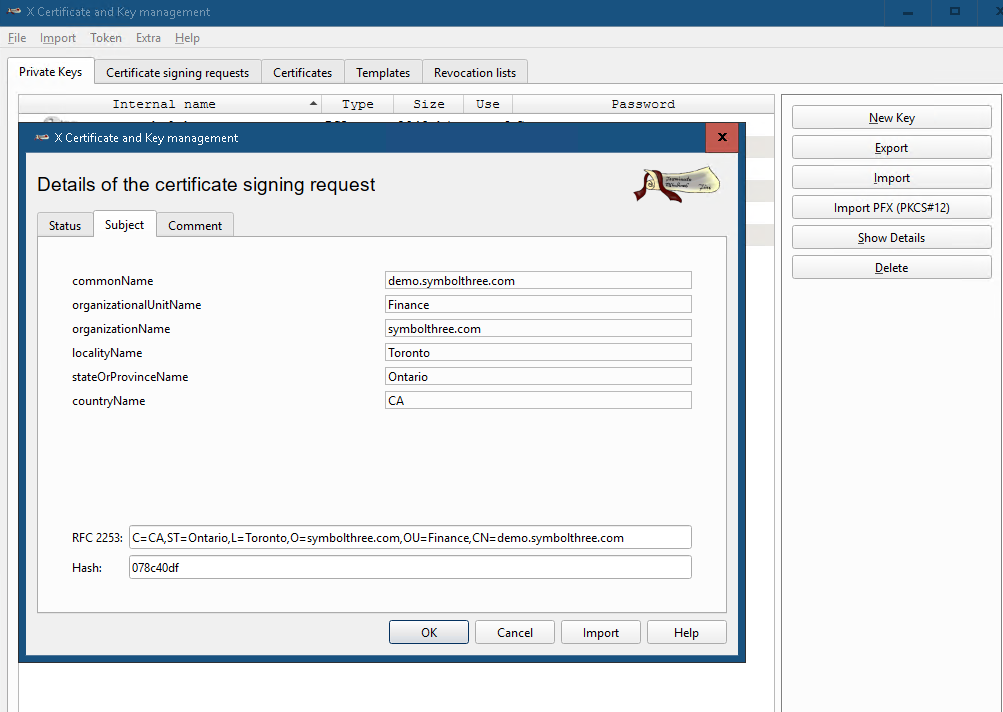
Sign this certificate with your own CA. Make sure you add
X509v3 Subject Alternative Name, DNS value of the EBS full URL and domain name.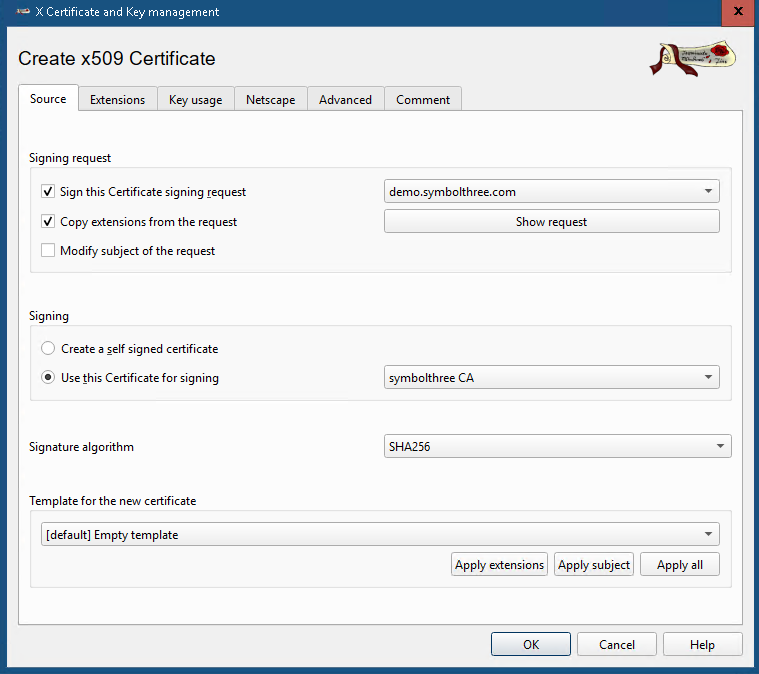
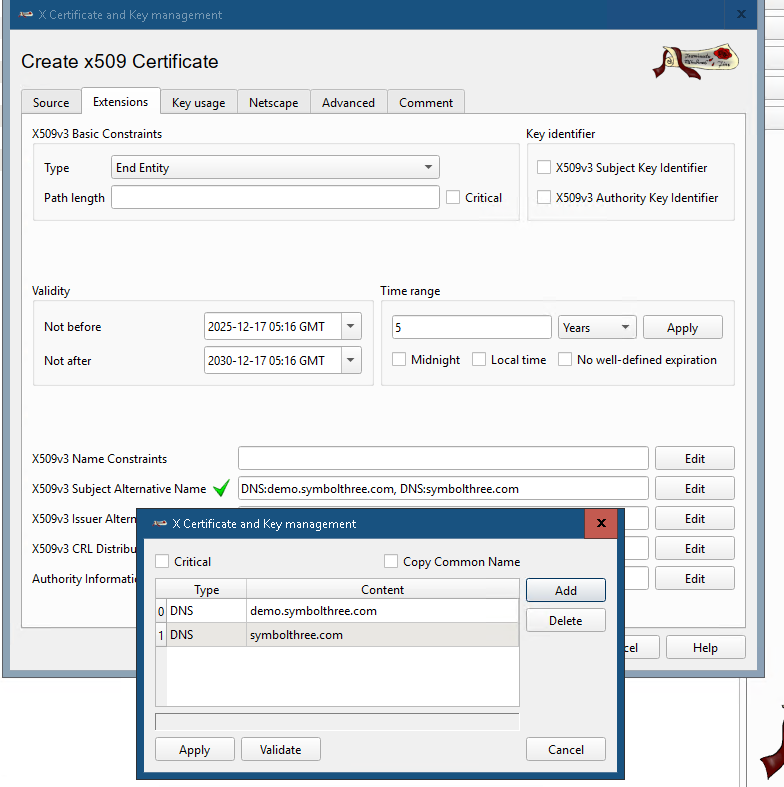
In XCA, export the signed certificate to file
cert.pemin PEM format. Also export the CA certificate to fileCA.pemin PEM format. Transfer these 2 files to app serverC:\oracle\certfolder where the filecwallet.ssoresided.Remove the self-signed certificate in both user and trusted sections in
cwallet.sso:xxxxxxxxxxorapki wallet remove ^-wallet . ^-user_cert ^-dn %DN% ^-auto_login_onlyorapki wallet remove ^-wallet . ^-trusted_cert ^-dn %DN% ^-auto_login_onlyAdd the CA certificate to trusted section
xxxxxxxxxxorapki wallet add ^-wallet . ^-nologo ^-auto_login_only ^-trusted_cert ^-cert CA.pemAdd the signed certificate to user section
xxxxxxxxxxorapki wallet add ^-wallet . ^-nologo ^-auto_login_only ^-user_cert ^-cert cert.pemShow the content of the wallet to verify that all certificates are in place
xxxxxxxxxxorapki wallet display -nologo -wallet .Requested Certificates:User Certificates:Subject: C=CA,ST=Ontario,L=Toronto,O=symbolthree.com,OU=Finance,CN=demo.symbolthree.comTrusted Certificates:Subject: EmailAddress=admin@symbolthree.com,CN=symbolthree.com,OU=IT,O=symbolthree.com,L=TORONTO,ST=ONTARIO,C=CACopy the new
cwallet.ssofile to OHS keystore default location:%FMW_HOME%\webtier\instances\EBS_web_[SID]_OHS1\config\OHS\EBS_web_[SID]\keystores\default
Open
%CONTEXT_FILE%and change the following parameters:Parameter Value s_url_protocol https s_local_url_protocol https s_webentryurlprotocol https s_active_webport 4443 s_webssl_port 4443 s_https_listen_parameter 4443 s_login_page https://[app server host]:4443/OA_HTML/AppsLogins_external_url https://[app server host]:4443Run
%ADMIN_SCRIPTS_HOME%\adautocfg.cmdto update all script files and profile options.Ignore the error of
ibywebprf.cmd INSTE8_PRF
Use
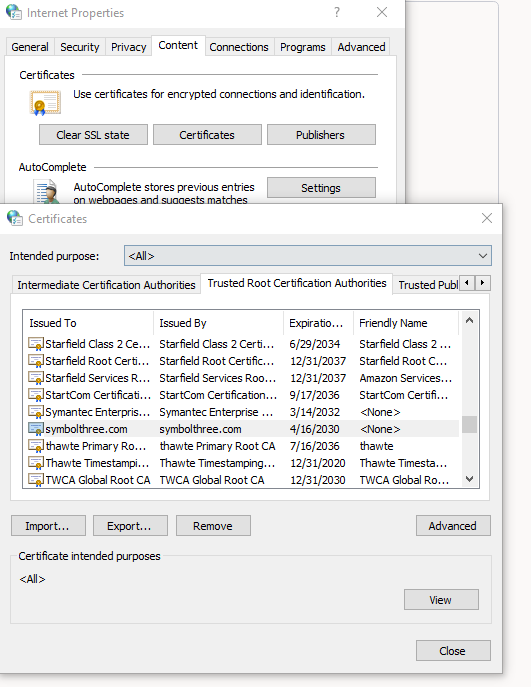
%ADMIN_SCRIPTS_HOME%\adstpall.cmd/adstrtal.cmdscripts to stop and restart all services. The web entry point now ishttps://[app server host]:4443/OA_HTML/AppsLogin.If your CA certificate is not trusted by your browser, open the Internet Properties (
inetcpl.cpl), then import theCA.pemfile to theTrusted Root Certificate Authoritysection.
| Table of Content | Next |
| Home | Repositories | Blog |
© 2026 by Christopher Ho. All Rights Reserved